IMPORTANT: This module carries out operations that change the sample parentage and Label_ID contents of affected samples (and their children). Changes can be difficult to undo, so the user should take additional care when using this module.
The Reparent Samples module allows the user to move a sample from one parent sample to another. This changes the sample hierarchy of the new parent sample, so it also affects the children, grandchildren, etc., of the target sample, making them part of the new hierarchy.
In the sample hierarchy shown below, the Label_IDs of the working half (SHLF 2 W) and its four child samples (CUBE, CUBE, CYL, CYL) are based on the label of SECT 1. Reparenting the working section half to SECT 2 changes the Label_IDs of the section half and all four child samples. It does not affect the Label_IDs of SECT 1, SECT 2, or the archive half and its U-channel child sample.
Parentage hierarchy before reparenting section half:
SECT 1
SHLF 2 W
CUBE
CUBE
CYL
CYL
SHLF 2 A
UCHAN
SECT 2
Parentage hierarchy after Reparenting section half:
SECT 1
SHLF 2 A
UCHAN
SECT 2
SHLF 2 W
CUBE
CUBE
CYL
CYL
The privileges for the Reparent Samples module are defined by sample type. A user may be given sample type = ALL, in which case their account can operate on all sample types (typically restricted to curatorial staff and laboratory officers). In most cases, users are granted privileges for specific sample types depending on their laboratory functions (e.g., samples taken at the sampling table).
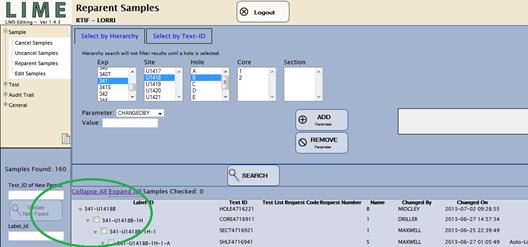
Note that even with sample type = ALL, Reparent Samples cannot operate on samples of type HOLE. As shown in Figure 15, a user can search on a hole, but when the results table returns, no selection box appears next to the HOLE entry (circled).
Figure 15. Search Results for Sample Type HOLE.
The user can print labels (showing the new Label_IDs) for the reparented samples by clicking the “Print labels” checkbox in the lower left panel; if this box is checked, the labels for the reparented sample and all of its children, grandchildren, etc., down to the bottom of the hierarchy tree, print. By default, the checkbox is inactive. All labels print on the same label printer and the same label format, so some labels may have to be reprinted using the Sample Master application.
|
1. |
Determine which samples need to be reparented and why. |
|
2. |
Perform a search as described in “Search Functions” to obtain samples to be reparented. This query returns only active samples. |
|
3. |
Click “Expand All” and select the checkboxes of one or more samples to be reparented to a single target sample. Note that samples at different levels of the hierarchy may uncheck other samples to ensure a valid operation occurs. |
|
4. |
Enter, scan, or paste a valid TEXT_ID into the “TEXT_ID of New Parent” field. |
|
5. |
Click the “Validate New Parent” button. This returns the Label_ID of the new parent if the TEXT_ID is valid or an error if the TEXT_ID is invalid. |
|
|
IMPORTANT: Check that the Label_ID of the new parent is correct before continuing! |
|
|
A new parent can be invalid if the TEXT_ID was improperly entered or if the new parent is canceled. The new parent must be an active sample. |
|
6. |
If new labels are desired, check the “Print labels” box. |
|
7. |
Click the “REPARENT SAMPLES” button. |
|
8. |
An audit trail pop-up window (see Fig. 13) appears, prompting the user for a reason taking this action. Enter a reason (5–150 characters). |
|
9. |
Click “Save Reason and continue.” Note that the “NO CHANGE and return” button will return the user to the previous state and no database action will occur. |
|
10. |
Once “Save Reason and continue” is clicked, the operation is performed and the original search query is run again; the reparented sample(s) and their children may or may not appear in the query results depending on the query parameters. |
|
11. |
Verify the reparenting action running a search on the new sample hierarchy. |
|
· |
Sample type HOLE cannot be reparented regardless of user account privileges. |
|
· |
Samples cannot be reparented to their own children/descendants. Attempting to do so will return an error message. |
|
· |
Specify the “TEXT_ID of New Parent” field as shown in Figure 16 (circled) only after performing the search query; clicking in the search parameter area clears the new parent automatically. |

Figure 16. New Parent TEXT_ID Entry Field.